
Generate a document with AI assist
The platform’s document generator turns a short form into a full HR document. Behind the scenes it uses Claude Opus to draft the document text, with the platform handling formatting, brand styling, and storage.
Document types you can generate
The platform ships with templates for the documents most Australian SMBs need:
- Employment contract (full-time and casual variants)
- Independent flexibility agreement (IFA)
- Contractor agreement (Australian or Philippines-based)
- Written warning (verbal, first written, final written variants)
- Performance Improvement Plan (PIP)
- Record of Employee Discussion
- Custom: a free-form generator for anything else
Each template knows what fields to ask for and how to draft the document in correct legal-style language.
Generate a document
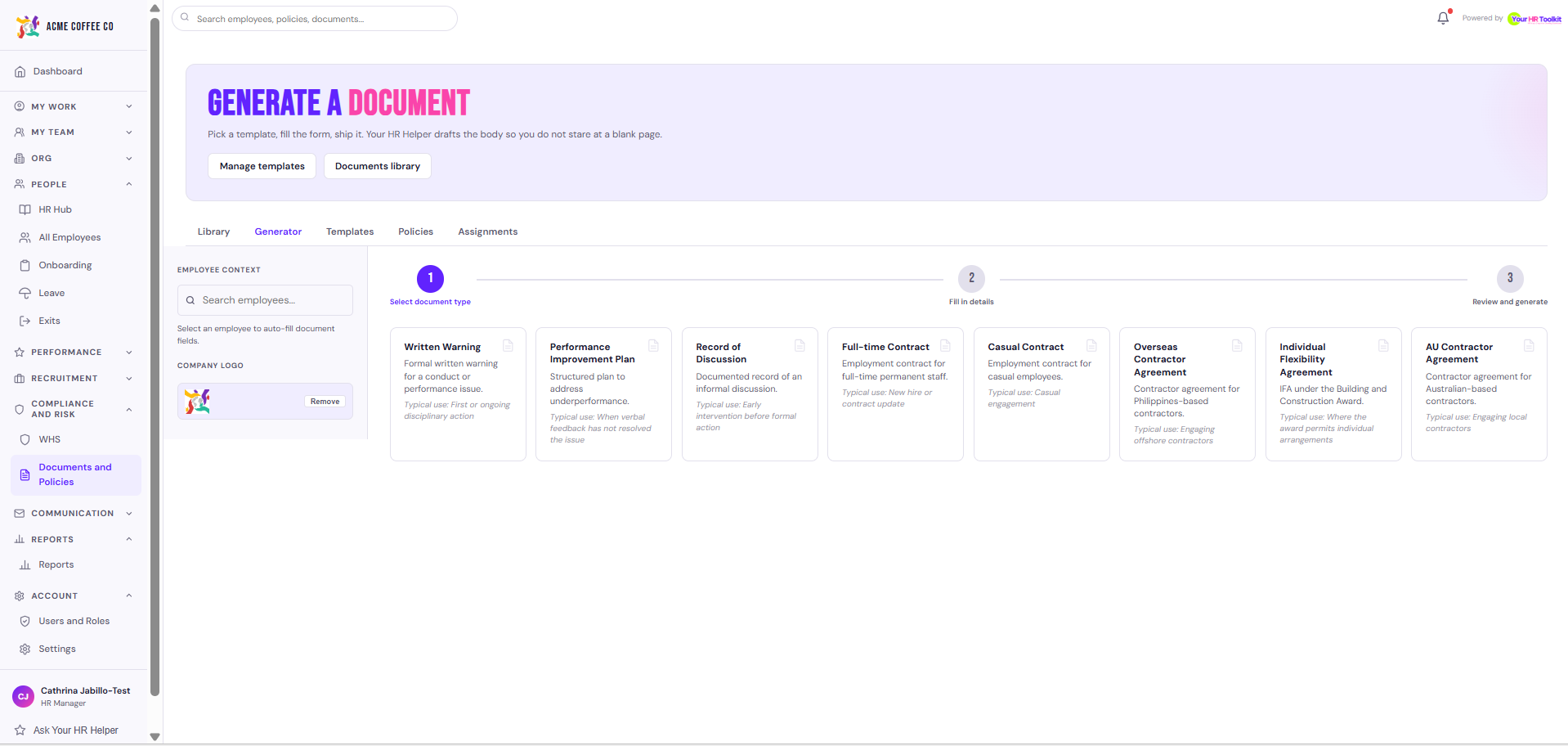
- Open the document generator (from the employee’s profile under the Documents tab, or from the Documents area).
- Pick the document type.
- Pick the employee. The form prefills with their details: name, job title, employment type, start date, work location, award classification, manager, organisation name, etc.
- Fill in any document-specific fields the template asks for (e.g. for a written warning: the conduct concern, the expected change, consequences if no change).
- Click to generate.
The platform sends your inputs to Claude with a system prompt tuned for Australian HR drafting. The result appears in a preview pane within seconds.
Review and edit before sending
The AI is a starting point, not a final document. Read it carefully:
- Check the facts. The AI uses what you typed plus the employee record; it can’t verify anything else.
- Check the tone is right for the situation.
- Add, remove, or rewrite any sections.
- For sensitive documents (warnings, PIPs), have a qualified HR or legal advisor review before delivery.
The document is stored against the employee’s record as a draft until you finalise it.
Finalise and send
When you’re ready:
- Click Finalise. The document is locked at this version.
- Click Send to share it with the employee. They see it in their My Documents page and, if signing is required, get a signature request.
The full lifecycle is: draft → final → acknowledged (or signed if it requires e-signature).
A note on legal advice
The generator is an authoring tool. It is NOT legal advice and does not replace review by a qualified HR or legal professional for documents that create legal obligations. For warnings, PIPs, contract variations, or anything contentious, get a human review.