
Build a workflow template
You build workflow templates in the workflow builder. Once published, the platform uses your custom version any time the matching trigger fires.
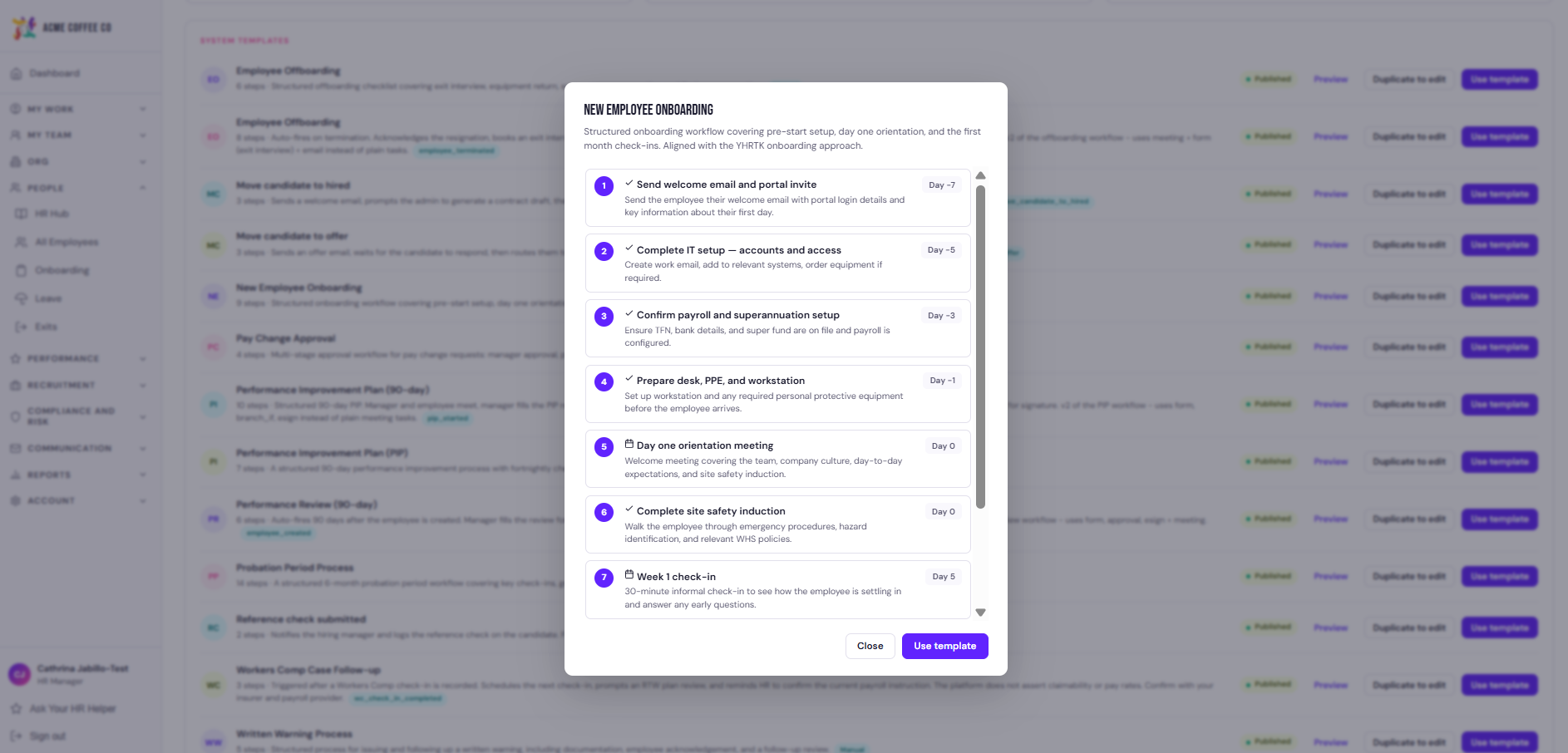
Start from a system template
Easiest way in. Most processes only need a few tweaks to the default.
- Sidebar then Workflows.
- System templates tab. Pick the closest match.
- Duplicate to my templates. Your copy opens in the builder.
Or start from scratch
- Sidebar then Workflows.
- Our templates tab.
- New workflow.
- Pick a trigger (new starter, employment change, exit, manual, form submission).
What goes in a workflow
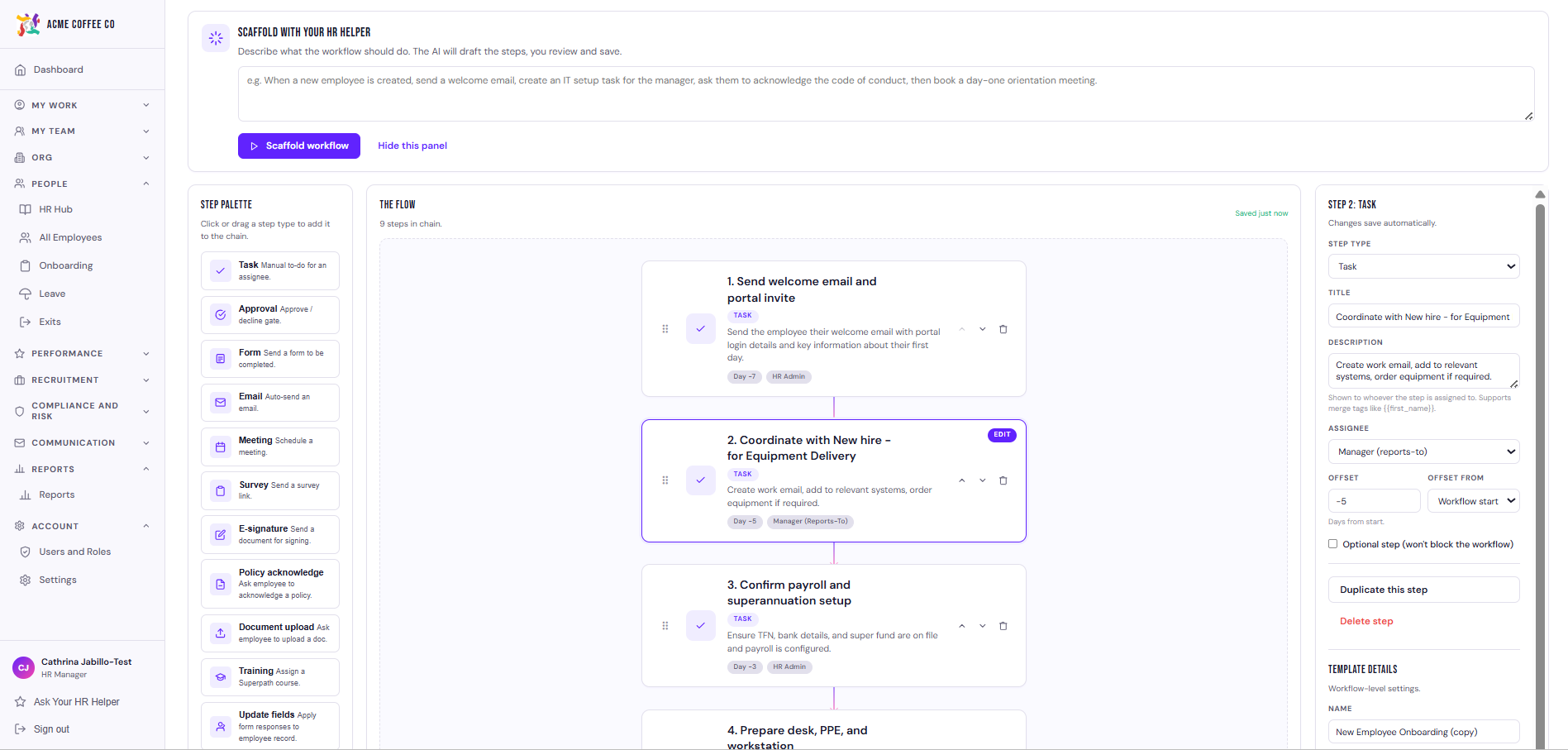
The builder is a vertical timeline. Each block is a step. Drag steps to reorder, click a step to edit it, or use the plus button between steps to insert a new one.
Step types:
- Task. Assigned to an owner type (employee, manager, HR, IT, custom role). Shows up in their My Tasks with a title, description, and optional due date offset.
- Approval. Pauses the workflow until the assignee approves or rejects from the approval page or their notification.
- Email. Sent on a day offset from the trigger. Uses merge tags to personalise.
- Document generation. Optionally drafts a document from a template and assigns it for signature or acknowledgement.
Test before you publish
Each template has a Run a test instance option. The test runs against a fake employee record so nothing real is created. Walk through the steps as the assignees would and check the wording, the timing, and that the right things fire.
Publish
Click Publish. The next matching trigger event uses your version.
Changes to a published template apply to future instances only. Workflows already in flight stay on the version they started with.
Who can do this
Admins only.