
Approve or decline leave from your team
When a direct report submits a leave request, you’ll get an email and the request appears in your approval queue on the My Leave page. You review it, then approve or decline.
Find pending approvals
- On the left hand sidebar, click My Leave.
- Scroll to the approval queue section. Pending requests from your direct reports are listed here.
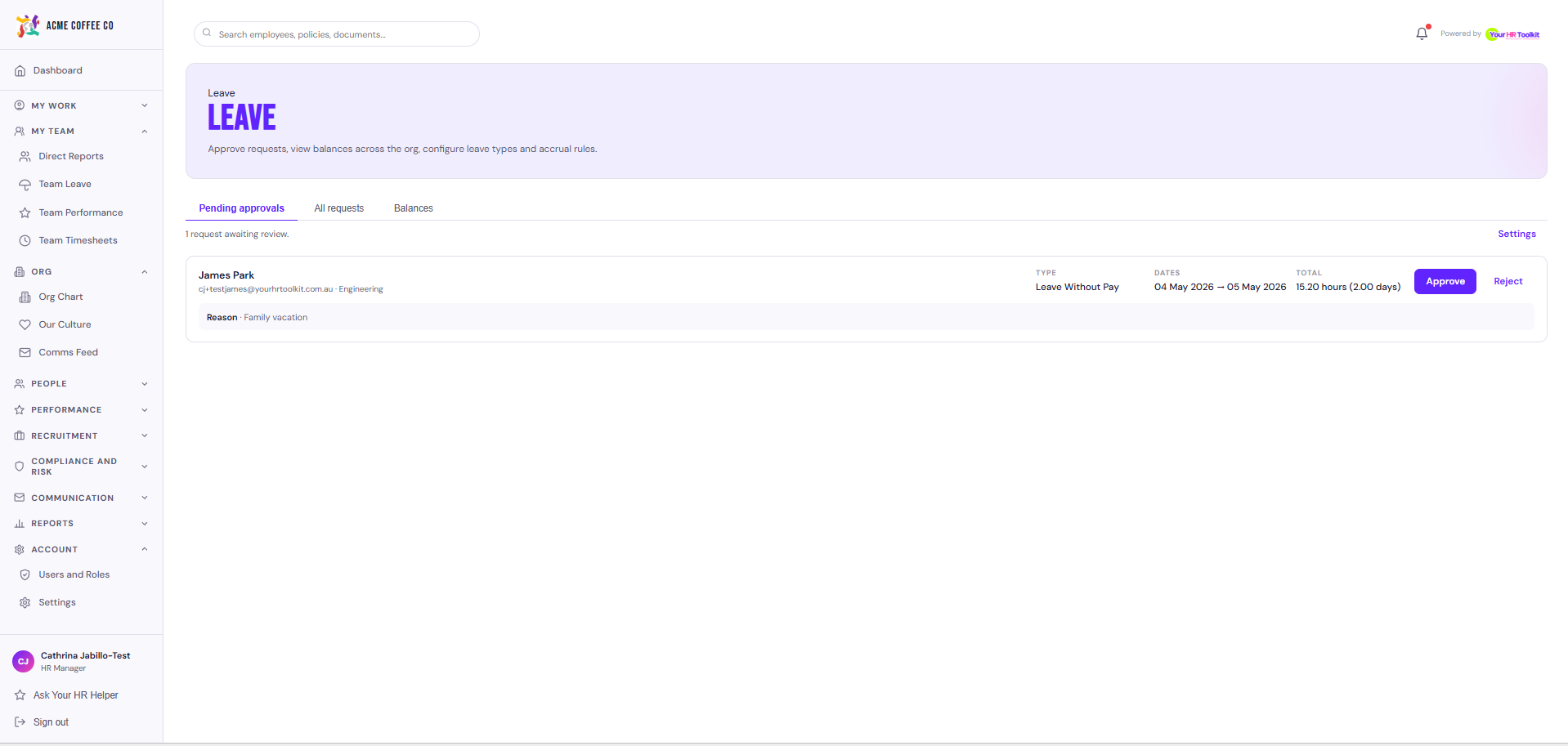
Each row shows:
- The employee
- Leave type
- Start and end dates
- Total duration (days or hours)
- Any reason or note the requester provided
- Their current balance for that leave type
- A status badge
Approve a request
- Click into the request to open the detail.
- (Optional) Add a note explaining your decision. The note is recorded on the request and the requester can see it.
- Click to approve.
The requester receives an email with the decision. The leave is added to their taken column, which reduces their current balance by the duration of the request.
Decline a request
- Click into the request.
- Add a rejection reason. This is required so the requester understands why.
- Click to decline.
The requester receives an email with the decision and your reason. Their balance is unchanged (since pending requests don’t reduce the balance in the first place).
Two-stage approvals
Some leave types are configured to need both a manager and an HR admin approval before they’re final. If you approve a request that’s set up this way, it doesn’t go to Approved straight away. It moves to Pending stage 2 and waits for the HR admin to approve it. The requester is notified at each stage. See Two stage leave approvals for the full picture.
What you can see vs what you can edit
- You see leave requests from your direct reports only. You don’t see leave for the wider team or other parts of the org.
- You can’t change the dates or duration of a request. Only the requester can do that (by cancelling and re-submitting), or an HR admin via a manual adjustment.
- You can’t see Family and Domestic Violence (FDV) leave on team views. FDV is handled privately between the employee and HR.
If you’re going to be away
You can’t currently delegate approvals to another manager from the platform. If you’ll be away during a busy leave period, the cleanest option is to ask your HR admin to approve in your place, or coordinate with the requester to time their submission around your availability.