
Request leave
Anyone with a platform account can request leave for themselves. The request goes to your manager (or HR) for approval, depending on the leave type.
Submit a leave request
- On the left hand sidebar, click My Leave.
- Your current balances show at the top of the page (annual, personal, and any other leave types your organisation has set up).
- Click Request leave to open the form.
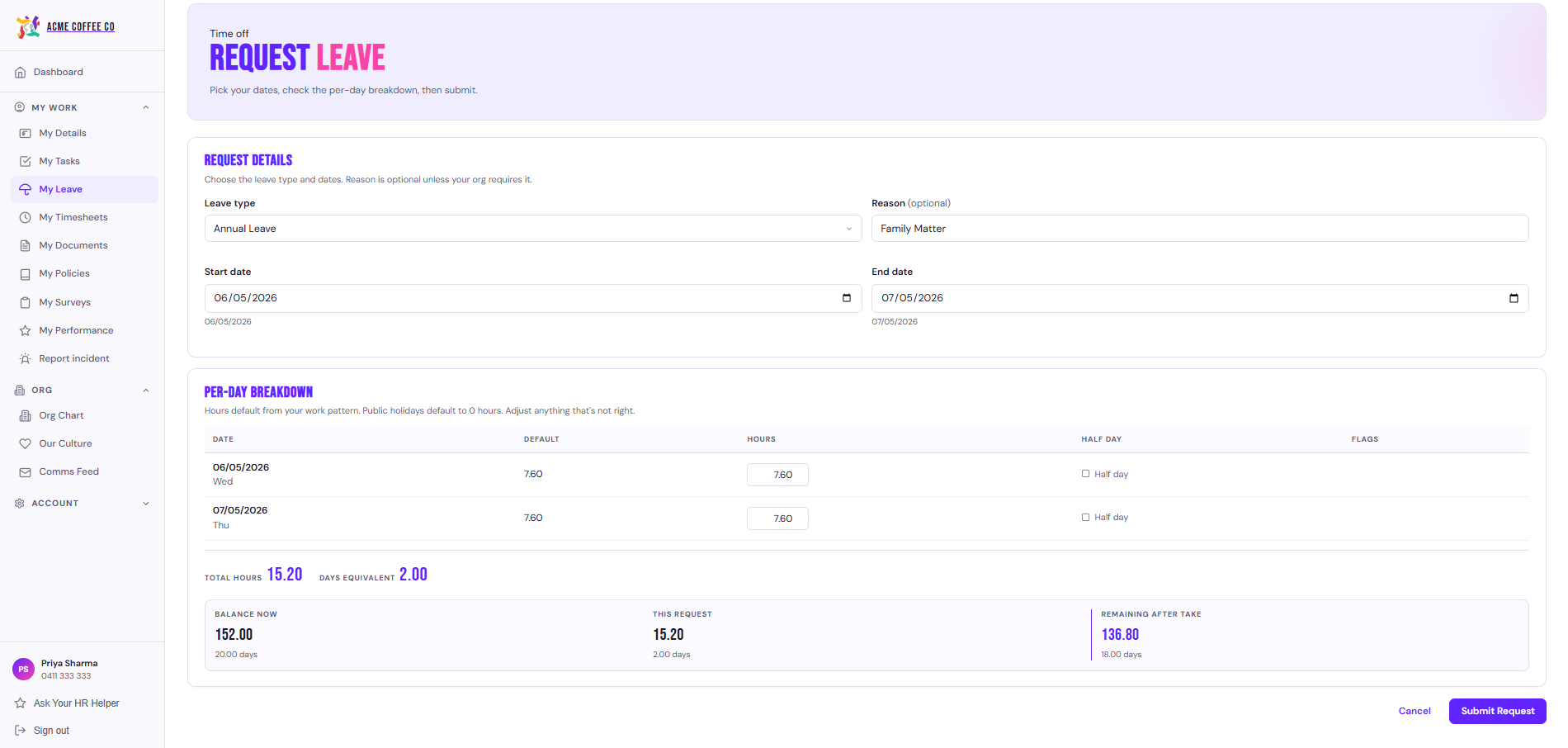
- Fill in:
- Leave type (annual, personal/carer’s, compassionate, etc.)
- Start date and end date
- Half day if it applies, plus whether it’s morning or afternoon
- Optionally a reason or note for your manager
- The system shows a projected balance after the request, so you can see the impact before you submit.
- Click submit.
Leave types your platform supports
These are the standard ones seeded for every Australian organisation under the National Employment Standards (NES):
- Annual leave (20 days a year, accrues continuously, manager approves)
- Personal/Carer’s leave (10 days a year, manager approves)
- Compassionate leave (no accrual, requires approval)
- Community service leave (unpaid)
- Parental leave (unpaid, HR admin approves)
- Family and Domestic Violence (FDV) leave (paid, manager approves)
Your organisation may have added custom leave types on top of these. They show in the leave type dropdown when you create a request.
What happens after you submit
The system routes your request based on the leave type:
- Manager approval. Your direct manager gets an email and an in-app task.
- HR admin approval. Goes to your HR admin (used for things like parental leave).
- Two stage approval. Goes to your manager first, then HR admin after manager approval.
- Auto approve. Some leave types (set up by your admin) approve automatically with no manager involvement.
You’ll get an email when your request is approved or declined. If declined, the rejection reason is included. Approved leave is deducted from your balance immediately.
Half day requests
Tick the half day option in the form and pick AM or PM. The request counts as 0.5 days against your balance.
Track your requests
The My Leave page shows your upcoming and past requests in a list, with status (Pending, Approved, Rejected, Pending stage 2 if your org uses two stage approval).
Approving leave (managers)
If you’re a manager, you’ll see an approval queue on the My Leave page with pending requests from your direct reports. Each request shows the dates, duration, leave type, and any reason the requester gave. Click into a request to approve or reject. You can leave a note on the decision.
For two stage approvals, your decision moves the request to the next stage rather than approving it outright. The requester is notified at each stage.
Who can do this
Anyone with a platform account can request their own leave. Managers see requests from their direct reports. Admins see organisation-wide leave with filters by team or status.