
Update your organisation's branding
Your HR Toolkit lets you brand the platform to match your organisation: your name appears in the header, your logo replaces the default, and your brand colours are used throughout the interface.
Open branding
- On the left hand sidebar, click Settings.
- Open the Organisation Branding area.
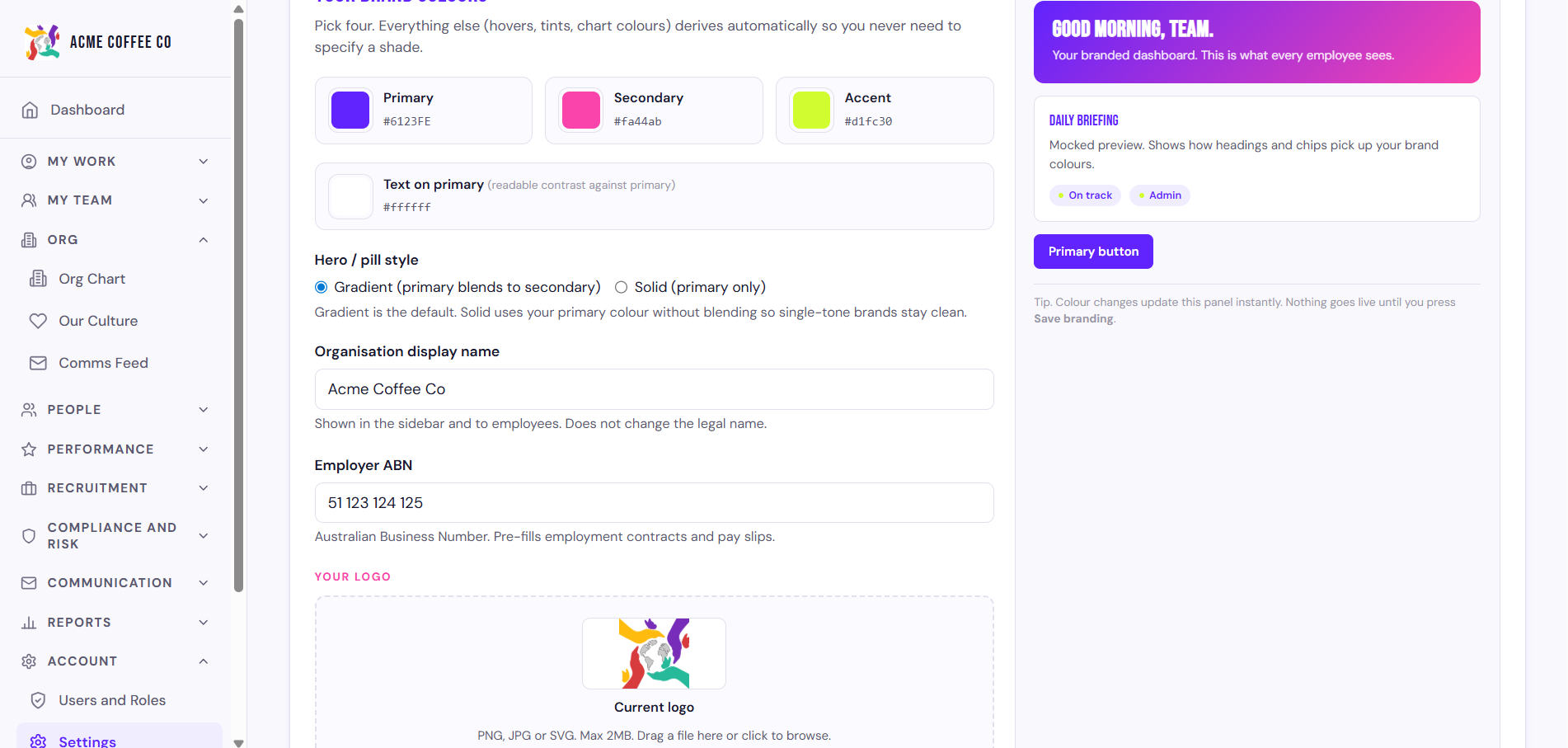
Set your organisation name
The organisation name appears in:
- The browser tab title on every page
- The footer of every email the platform sends
- Anywhere the platform references “the organisation”
Type the name as it should appear publicly. Avoid all-caps unless your brand specifically uses it.
Upload a logo
- Click to upload a logo file.
- Pick a PNG or SVG file. Square or wide-aspect both work; the platform sizes appropriately.
- Save.
Your logo replaces the default Your HR Toolkit mark in the platform’s sidebar and on emails. The default returns automatically if your upload fails to load.
Set your brand colours
Two colour values affect the platform’s appearance:
- Brand primary. The main brand colour. Used for buttons, links, and accents.
- Brand secondary. A complementary colour. Used for highlights and secondary buttons.
Pick from the colour picker, or paste a hex value (e.g. #0F62FE).
The platform applies the colours to every employee’s interface
immediately.
Test before going live
Before rolling out a new brand:
- Apply the changes in Settings.
- Open the platform in a fresh browser tab as a regular employee (use Login As to test from another user’s perspective).
- Click through the main pages: dashboard, leave, policies, performance.
- Check that text is still readable on coloured backgrounds. Some bright brand colours look great on a poster but make button text hard to read.
If the colours don’t quite work, tweak. The platform uses a contrast algorithm to pick text colours automatically, but extreme brand colours can still cause readability issues.
Email branding
Emails sent from the platform (welcome, password reset, leave approval, etc.) use your organisation’s name as the sender and your brand colours in the email design. The from address stays at hr@yourhrtoolkit.com.au (or the platform default), but recipients see your name in the sender display.
If you need a fully custom email sender domain, that’s a more involved setup — contact support@yourhrtoolkit.com.au to discuss.
What you can’t currently customise
- The platform’s overall layout (sidebar, header, navigation structure)
- Custom CSS or fonts
- The favicon (uses the platform default)
These are intentional limitations to keep the platform consistent and maintainable. If your branding genuinely requires deeper customisation, talk to us about whether the platform is the right fit, or whether a wrapper/embed approach makes more sense.
Permissions
Org admins only.