
Understand your leave balance
Your leave balance on the My Leave page is calculated from four components. Knowing what each one means helps you understand why your balance moves the way it does.
What you see on each balance card
Every leave type your organisation has set up shows as a card at the top of My Leave. Each card displays your current balance (in days, or in weeks for Long Service Leave), the unit, and a bar showing how much you’ve taken so far against your accrued total.
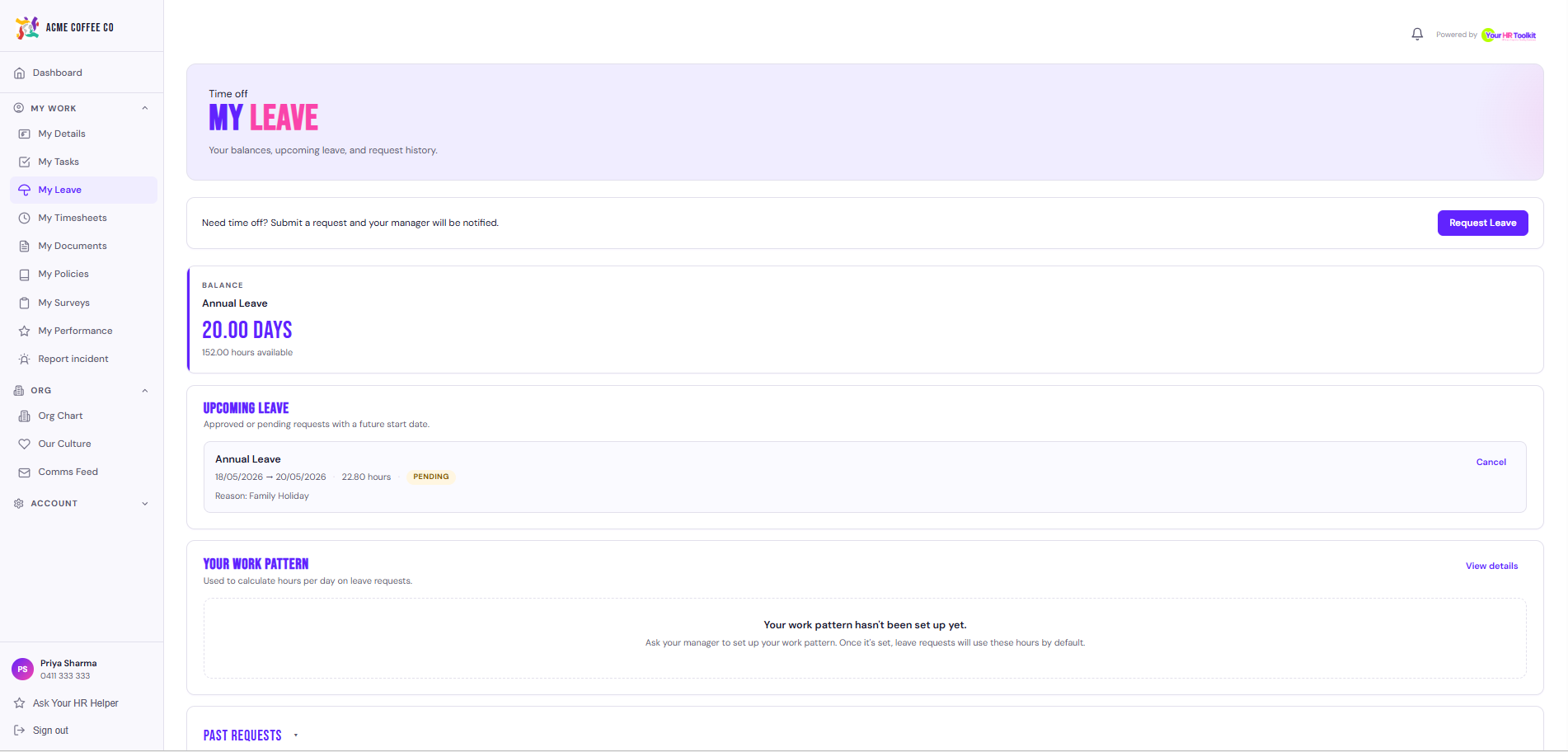
Annual leave that drops below 5 days shows in amber. A negative balance (if your organisation allows it) shows in red.
Family and Domestic Violence leave is private to you and your HR admin. It doesn’t appear on team-visible leave reports.
How the balance is calculated
Current balance = Opening balance + Accrued + Adjusted - Taken- Opening balance. What you started with when your record was created on the platform (often imported from your previous HR system).
- Accrued. What the platform has added over time according to your organisation’s accrual rules. Annual leave usually accrues continuously (a small amount each pay cycle); some leave types accrue differently.
- Adjusted. Any manual adjustments your HR admin has made. Every adjustment is logged with a reason and a timestamp.
- Taken. Approved leave you’ve used. Pending requests are not subtracted yet, only approved ones.
When the balance updates
- Pending request. No change to your balance yet. The page does show a projected balance when you fill in a new request, so you can see the impact before submitting.
- Approved. The leave is added to your taken column and your current balance drops accordingly.
- Rejected or cancelled. No change. Your balance stays where it was before the request.
- Accrual cycle. Your accrued column ticks up at the cadence your org has set (weekly, fortnightly, monthly, or yearly).
Negative balances
Some leave types can be set to allow negative balances (for example, taking leave you haven’t yet accrued). If your org allows this, the page will warn you with an amber message rather than blocking the submit. If negative isn’t allowed, the submit button is disabled until you have enough balance.
Long service leave (LSL) shown in weeks
LSL displays in weeks rather than days, because that’s how the entitlement is normally talked about. Other leave types stay in days (or hours, configurable per type).
Where it comes from
If your balance looks wrong, your HR admin can see the full audit trail of every change to it: opening balance import, every accrual cycle, every adjustment, and every approved request. Ask them to check if you spot something off.